

Captions brings one-tap video editing to horizontal formats
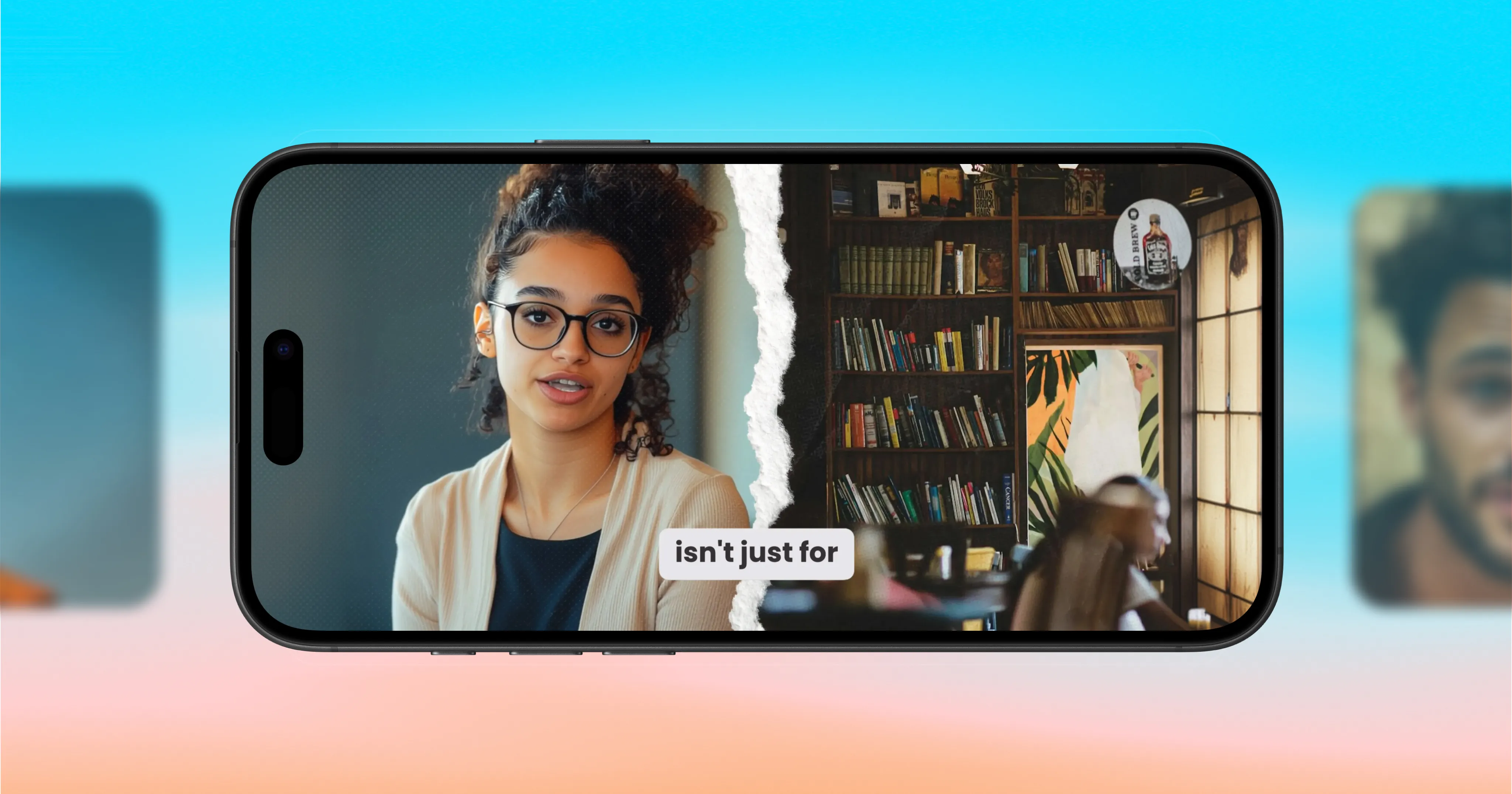
Videos are like currency in today’s marketing landscape. You probably need more of them, and for more channels than ever.
Captions’ AI Edit is designed to speed up video editing and help you show up across more platforms. Upload raw footage into the Captions app, and AI edits with the judgment of a professional editor, applying sounds, pacing, and visual elements automatically.
AI Edit works for both vertical and horizontal videos. We just added new horizontal styles to the app, so we’re sharing our favorite tips about it.
More formats, more ways to create
With new styles optimized for horizontal videos, AI Edit makes it easier to create more videos for all types of use cases. Because video formats don’t just change how content looks. They change where it can go and how it should feel.
Here are a few ways it can take shape.
Expand your social reach
Different social platforms prioritize different video formats. Having more format flexibility makes it easier to show up where your audience already is.
Horizontal video lets your content fit naturally into more placements across platforms like YouTube, LinkedIn, and X. With AI Edit, those videos come together quickly, so they’re polished and ready to share without slowing you down.
Repurpose long-form content
Longer horizontal recordings can go much further than acting as a single video. Interviews, podcasts, and talks can be reused in multiple ways when the format allows for it.
You can clip out the best moments and let AI Edit handle the edit. In just a few taps, you’ll get ready-to-publish videos great for bite-sized promotional clips, teasers, or multiple standalone assets from one recording.
Grow your video library
More and more teams are relying on video to share knowledge internally. From onboarding and training to educational walkthroughs, video has become a practical way to explain things clearly.
While these videos don’t need to be overly edited, they do need to be clear, watchable, and easy to keep up to date. AI Edit helps shape raw recordings into polished videos quickly, so building an internal video library feels manageable instead of overwhelming.
Build trust with video
Sales and support teams are using video more often to explain products, show how something works, and answer questions quickly.
AI Edit helps get those videos edited and ready to use quickly, so teams can focus on the conversation instead of the edit.
Create video for your site
Not all video is meant to be scrolled past. It can also live on your site and help people understand what you offer.
That includes things like website embeds, product pages, and resource hubs. Horizontal video fits naturally into these layouts, and AI Edit helps produce polished videos that work well in more permanent contexts.
How to get started with AI Edit for horizontal editing
You can try out AI Edit from the Captions app or Captions on web.
Use AI Edit from the Captions app:
Open up the the Captions app and select ‘AI Edit’ from the home screen
Choose a video from your camera roll
Browse the library of AI Edit styles and make your pick
Customize as much or as little as you want
Add media by uploading assets or let AI Edit generate visuals automatically
Apply brand colors or color preferences if you want them incorporated
Tap ‘Generate edit’
After a few minutes your video will be fully edited and ready to review
Make any final adjustments in the Captions editor before exporting
Use AI Edit on web:
Go to captions.ai in your browser
Either upload a video or select Edit Video from the main screen
Upload your video
Browse the AI Edit style library and choose a style
Customize colors and upload any media you want included
Click Edit to generate your video
Review the finished edit after a few minutes
Make any final adjustments in the Captions editor before exporting
The best ideas are still ahead
AI Edit helps you move faster as you experiment and explore. You'll start to see horizontal styles rolling out today.